Looking for a clean, modern IPTV player that actually works without constant crashes or confusing menus? IBO Player has become one of the most popular choices for streaming live TV, movies, and series—but only if you know how to set it up properly and use it with a reliable IPTV service.
This guide gives you everything you need to know about IBO Player. You’ll learn exactly how to download and configure it on every major device, understand what features make it stand out from competitors, discover which IPTV services work best with it, and get solutions to the most common problems users face.
Whether you’re switching from another IPTV app or starting fresh, this article walks you through the complete IBO Player experience—from installation to advanced features—so you can start streaming quality content within minutes.
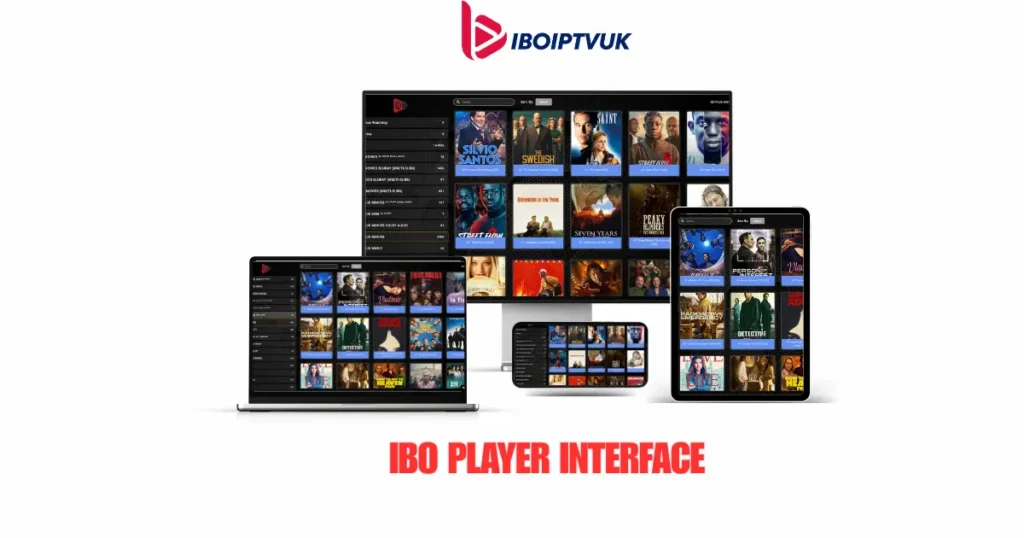
What is IBO Player?
IBO Player (formerly known as IBO Player Pro) is a third-party IPTV application designed to stream live television channels, movies, and series using M3U playlists and Xtream Codes API. Originally developed for Android and iOS devices, it has expanded to support Fire TV, Smart TVs, and other streaming platforms.
The app serves as a media player interface—it doesn’t provide content itself. Instead, you connect it to an IPTV service subscription using login credentials, and IBO Player organizes and displays that content in an easy-to-navigate interface.
What Makes IBO Player Different?
Modern Interface Design
Unlike older IPTV apps with cluttered menus, IBO Player features a clean, minimalist design that prioritizes usability. The layout feels contemporary and responds smoothly to navigation.
VOD Integration
IBO Player excels at organizing on-demand content. Movies and series appear with posters, descriptions, and proper categorization rather than endless text lists.
Cross-Platform Availability
The same familiar interface works across Android phones, tablets, Fire TV devices, iPhones, iPads, and Smart TVs—making it easy to switch between devices without relearning controls.
Regular Updates
The development team actively maintains IBO Player, pushing updates to fix bugs, improve stability, and add features based on user feedback.
Key Features of IBO Player
Electronic Program Guide (EPG)
IBO Player displays a comprehensive EPG showing current and upcoming programs for each channel. The guide includes:
- Program titles and descriptions
- Start and end times for each show
- Channel logos for visual identification
- Color-coded programming for easy browsing
- Quick navigation to jump between time slots
A proper EPG transforms the viewing experience from blind channel surfing to informed selection, just like traditional cable TV guides.
VOD Library Management
The on-demand section organizes movies and TV series with:
- Movie posters and cover art
- Genre categorization (action, comedy, drama, horror, etc.)
- Search functionality to find specific titles
- Recently added content sections
- Continue watching for resuming partially viewed content
This visual organization makes browsing thousands of movies feel manageable rather than overwhelming.
Multi-Device Support
One IBO Player account can work across multiple devices simultaneously (depending on your IPTV service’s device limit):
- Android smartphones and tablets
- iPhones and iPads
- Amazon Fire TV Stick and Fire TV
- Android Smart TVs
- Set-top boxes
Your playlists, favorites, and settings can be consistent across all devices.
Parental Controls
Protect children from inappropriate content with PIN-protected parental controls:
- Lock specific channels or categories
- Require PIN entry to access adult content
- Hide channels from the main menu entirely
- Control access to VOD sections
Favorites and History
Organize your viewing with:
- Favorites Lists: Quick access to channels you watch regularly
- Watch History: Resume where you left off in movies or series
- Custom Categories: Group channels by your preferences
Subtitle Support
For VOD content, IBO Player supports:
- Multiple subtitle languages
- Auto-loading subtitles when available
- Manual subtitle file upload (SRT format)
- Adjustable subtitle size and position
Playback Controls
Standard playback features include:
- Play, pause, rewind, fast-forward
- 10-second skip forward/backward
- Speed adjustment (0.5x to 2x)
- Audio track selection for multi-language content
- Picture quality adjustment
IBO Player vs. Other IPTV Apps
How Does IBO Player Compare?
IBO Player vs. IPTV Smarters Pro:
| Feature | IBO Player | IPTV Smarters Pro |
|---|---|---|
| Interface Design | Modern, minimalist | Functional, traditional |
| VOD Organization | Excellent with posters | Good, text-based options |
| Platform Support | Android, iOS, Fire TV | All major platforms |
| Learning Curve | Easy | Very easy |
| Updates | Regular | Frequent |
| Price | Free with premium options | Free with Pro version |
Verdict: IBO Player wins on aesthetics and VOD presentation; Smarters Pro offers broader platform support and slightly easier setup.
IBO Player vs. TiviMate:
| Feature | IBO Player | TiviMate |
|---|---|---|
| EPG Quality | Very good | Outstanding |
| Recording | No | Yes (premium) |
| Customization | Moderate | Extensive |
| Platform Support | Multi-platform | Android/Fire TV only |
| Interface | Clean, modern | Highly customizable |
| Price | Free | $5-25 for premium |
Verdict: TiviMate offers more advanced features (recording, superior EPG) but only on Android/Fire TV. IBO Player provides a better cross-platform experience with simpler setup.
IBO Player vs. GSE Smart IPTV:
| Feature | IBO Player | GSE Smart IPTV |
|---|---|---|
| iOS Experience | Good | Excellent |
| Interface | Modern | Professional |
| EPG | Good | Very good |
| Setup Complexity | Easy | Moderate |
| Features | Balanced | Advanced |
Verdict: GSE Smart IPTV is better optimized for iOS devices; IBO Player offers a more consistent experience across all platforms.
When to Choose IBO Player
Choose IBO Player if you:
- Want a modern, attractive interface
- Use multiple device types (Android, iOS, Fire TV)
- Prioritize VOD organization with visual browsing
- Prefer straightforward setup without complexity
- Need parental controls
- Don’t require advanced features like recording
Choose Another App if you:
- Need recording/DVR functionality → Use TiviMate
- Want maximum customization → Use Perfect Player
- Only use iOS devices → Consider GSE Smart IPTV
- Want the simplest possible setup → Use IPTV Smarters Pro
How to Download IBO Player
Download on Android Devices
Method 1: Google Play Store (Recommended)
- Open Google Play Store on your Android device
- Search for “IBO Player”
- Look for the official app (check developer name)
- Tap Install
- Wait for download and installation to complete
- Tap Open to launch
Method 2: APK Download (Alternative)
If the app isn’t available in your region’s Play Store:
- Enable Unknown Sources: Settings > Security > Unknown Sources (toggle on)
- Download IBO Player APK from the official website or trusted source
- Locate the downloaded APK file in your Downloads folder
- Tap the file to begin installation
- Confirm installation when prompted
- Launch the app from your app drawer
Download on Fire TV Stick / Fire TV
Method 1: Amazon App Store
- From Fire TV home screen, select Find or Search
- Type “IBO Player”
- Select the app from search results
- Click Download or Get
- Wait for installation
- Click Open to launch
Method 2: Sideloading with Downloader
- Enable Apps from Unknown Sources:
- Settings > My Fire TV > Developer Options > Apps from Unknown Sources (turn on)
- Install Downloader app from Amazon App Store
- Open Downloader
- Enter the IBO Player Downloader code: 1171959
- Click Go and wait for download
- Install the APK when prompted
- Access IBO Player from your apps list
Download on iPhone / iPad (iOS)
- Open App Store
- Search “IBO Player”
- Verify it’s the official app
- Tap Get then Install
- Authenticate with Face ID, Touch ID, or password
- Tap Open once installed
Download on Smart TVs
Android Smart TV:
- Open Google Play Store on your TV
- Search “IBO Player”
- Select and install
- Launch from Apps section
Samsung, LG, Other Non-Android Smart TVs:
- IBO Player doesn’t support these directly
- Use Amazon Fire Stick or Android TV box connected to your TV
- Install IBO Player on the streaming device
Complete Setup Guide: How to Configure IBO Player
Initial Setup with Xtream Codes API
Most IPTV services provide Xtream Codes login credentials. Here’s how to set up IBO Player:
Step 1: Launch IBO Player
- Open the app on your device
- You’ll see the main setup screen
Step 2: Add Your IPTV Service
- Tap the Settings icon or Add User button
- Select Login with Xtream Codes
- Enter the following information:
- Server URL: Provided by your IPTV service (e.g., http://example.com:8080)
- Username: Your account username
- Password: Your account password
- Optionally name this account (e.g., “My IPTV”)
- Tap Add or Login
Step 3: Wait for Content to Load
- IBO Player will connect to the server
- Channel list, VOD content, and EPG will download
- This may take 30 seconds to 2 minutes depending on playlist size
Step 4: Start Watching
- Browse live TV channels
- Explore movies and series in the VOD section
- Check the EPG for program schedules
Setup with M3U Playlist
If your IPTV service provides an M3U URL instead:
- Open IBO Player
- Go to Settings or Add Playlist
- Select M3U URL option
- Enter your M3U playlist link
- Optionally add EPG URL if provided separately
- Save and wait for playlist to load
Configuring EPG
For the best experience with program guides:
- Go to Settings in IBO Player
- Navigate to EPG settings
- Enter EPG URL (provided by your IPTV service)
- Set EPG refresh interval (12-24 hours recommended)
- Save and allow EPG to download
Tip: Some services include EPG automatically with Xtream Codes login. If you’re using M3U, you may need to add EPG separately.
Device-Specific Setup Instructions
How to Setup IBO Player on Fire Stick
Complete Step-by-Step Guide:
- Download the App (see Download section above)
- Launch IBO Player from your Apps list
- Navigate using Fire TV remote:
- Use directional pad to move between options
- Select button to choose items
- Back button to return to previous screen
- Add Your IPTV Service:
- Select Add User or Settings
- Choose Xtream Codes API
- Use the on-screen keyboard to enter:
- Server URL
- Username
- Password
- Click OK or Login
- Wait for Channels to Load
- Navigate the Interface:
- Live TV: Browse channels by category
- Movies: Access VOD content
- Series: TV shows on demand
- Settings: Adjust preferences
- Customize Settings:
- Go to Settings > Display to adjust text size
- Enable/disable EPG
- Set parental controls if needed
Fire Stick Tips:
- Use a wireless mouse/keyboard for easier text entry during setup
- Set up favorites for quick access to preferred channels
- Enable “remember last channel” in settings
How to Setup IBO Player on Android Devices
On Phones and Tablets:
- Download from Play Store (instructions above)
- Open IBO Player
- Grant Required Permissions:
- Storage access (for downloads, if applicable)
- Any other requested permissions
- Add IPTV Service:
- Tap + icon or Settings
- Select login method (Xtream Codes or M3U)
- Enter credentials
- Tap Add User
- Navigate Using Touchscreen:
- Swipe to browse categories
- Tap channels to watch
- Use menu button (≡) for settings
- Customize Experience:
- Settings > Interface > Choose layout preference
- Add channels to favorites
- Set up parental controls
How to Setup IBO Player on iPhone/iPad
iOS Setup Process:
- Download from App Store (see above)
- Open IBO Player
- Add IPTV Subscription:
- Tap Settings or Add button
- Select Xtream Codes
- Input server URL, username, password
- Name your playlist
- Tap Save or Add
- Wait for Content Loading
- Browse Content:
- Bottom navigation: Live TV, Movies, Series, Settings
- Swipe to browse categories
- Tap to select and watch
- Configure Settings:
- Go to Settings
- Adjust EPG, parental controls, appearance
- Set default quality preferences
iOS Tips:
- Use landscape mode on iPad for better viewing
- Enable picture-in-picture for multitasking (iOS 14+)
- Add app to favorites for quick access
How to Setup IBO Player on Smart TV
Android Smart TV:
- Navigate to Google Play Store on your TV
- Search “IBO Player” using TV remote
- Install the app
- Launch IBO Player
- Use TV Remote to Navigate:
- Arrow keys to move
- OK/Select button to choose
- Back button to return
- Add IPTV Service:
- Select Settings or Add User
- Choose Xtream Codes login
- Enter credentials using on-screen keyboard
- Configure Display Settings:
- Adjust text size for TV viewing distance
- Enable/disable channel logos
- Set EPG preferences
Tips for Smart TV:
- Connect a wireless keyboard for easier setup
- Sit close to TV during initial configuration
- Use number buttons on remote for direct channel access (if supported)
How to Setup IBO Player on PC (Windows/Mac)
IBO Player isn’t officially available for desktop computers.
Alternative Solutions:
Option 1: Android Emulator (Windows/Mac)
- Download BlueStacks or NoxPlayer emulator
- Install the emulator
- Open Google Play Store within emulator
- Download and install IBO Player
- Configure as you would on Android
Option 2: Use Different IPTV App For desktop streaming, consider:
- IPTV Smarters Pro (has Windows version)
- VLC Media Player (supports M3U playlists)
- MyIPTV Player (Mac)
IPTV Service Features to Use with IBO Player
When choosing an IPTV subscription for IBO Player, look for these features:
Content Library
Channel Count
Quality IPTV services offer 15,000-25,000+ channels spanning:
- International sports (football leagues, UFC, boxing, NBA, NFL)
- Entertainment and movies
- News networks (local and international)
- Kids programming
- Documentaries
- Music channels
- Regional content in multiple languages
VOD Library
On-demand content typically includes:
- 10,000-20,000 movies
- 3,000-7,000 TV series with multiple seasons
- Regular updates with new releases
- Multiple genres and language options
Technical Quality
Stream Quality
- SD: Standard definition for basic viewing
- HD: 720p and 1080p for sharp picture
- Full HD: Premium channels in 1080p
- 4K: Limited availability on select channels
Loading Speed
Quality services deliver:
- Channel switching: 2-5 seconds
- Movie/series loading: 3-8 seconds
- Minimal buffering with 15+ Mbps internet
Server Stability
Look for providers offering:
- 99%+ uptime
- Multiple server options
- Backup streams for major channels
- Quick recovery from outages
Special Features
Electronic Program Guide (EPG)
A complete EPG includes:
- 7-day programming schedules
- Program descriptions and episode info
- Channel logos
- Accurate timing data
Catch-Up / Replay
Many services offer:
- 1-7 days of replay per channel
- Ability to watch missed programs
- Archive access for selected content
Multi-Device Support
Typical plans include:
- 1 device: Basic plan
- 2-3 devices: Standard plan
- 5+ devices: Family plan
- Simultaneous streaming on all devices
Pricing for IPTV Services (To Use with IBO Player)
Typical Pricing Structure
Monthly Subscriptions:
- 1 Device: $10-15/month
- 2 Devices: $15-20/month
- 3+ Devices: $20-30/month
Annual Subscriptions:
- 1 Device: $80-120/year (save 20-30%)
- 2 Devices: $120-180/year
- 3+ Devices: $160-250/year
Trial Options:
- Free trials: 24-48 hours
- Paid trials: $2-5 for 3-7 days
What Affects Pricing?
Channel Selection: Premium sports packages cost more
Number of Devices: Multi-device plans add $5-10 per device
Service Quality: More reliable servers justify higher prices
VOD Library Size: Larger movie/series collections increase value
Support Quality: 24/7 support typically comes with premium tiers
Is IBO Player Suitable for Sports and Movie Fans?
For Sports Enthusiasts
IBO Player works excellently for sports streaming when paired with a quality IPTV service:
Live Sports Coverage:
- Football leagues
- American sports
- Combat sports
- Tennis, F1, motorsports, golf
- Regional sports networks
Why IBO Player Works Well:
- Fast channel switching during multi-game viewing
- EPG shows upcoming matches and events
- Favorites list for quick access to sports channels
- Stable playback with good IPTV service
- Multi-device support (watch on phone, switch to TV)
Tips for Sports Fans:
- Add all sports channels to favorites
- Check EPG before major events
- Use replay feature for missed matches
- Connect via ethernet for most stable streams during big games
For Movie Lovers
IBO Player’s VOD organization makes it ideal for movie enthusiasts:
Movie Library Features:
- Visual browsing with movie posters
- Genre filtering (action, comedy, horror, drama, etc.)
- Search function for finding specific titles
- Recently added section for new releases
- Continue watching to resume movies
Why It’s Great for Movies:
- Clean, Netflix-like interface for VOD
- Proper categorization instead of text lists
- Subtitle support for foreign films
- Quality adjustment for internet speed
- Works across all your devices
Tips for Movie Fans:
- Browse VOD section by genre
- Use search for specific titles
- Enable subtitles in settings if needed
- Bookmark favorites for easy access
- Check “recently added” regularly
Do You Need a VPN with IBO Player?
Why Consider a VPN
Privacy Protection
VPNs encrypt your internet traffic and hide your IP address, keeping your streaming activity private from ISPs and third parties.
ISP Throttling Prevention
Some internet providers slow down streaming traffic. A VPN prevents them from detecting and throttling your IPTV streams.
Geographic Access
Content restrictions based on location can be bypassed with VPN servers in different countries.
Security on Public Networks
When using IBO Player on public WiFi (hotels, cafes), VPNs protect your data from potential interception.
Best VPNs for IPTV Streaming
NordVPN
- Fast speeds (minimal impact on streaming)
- 60+ countries with servers
- No-logs policy
- Works with Fire TV, Android, iOS
- Cost: ~$3-12/month
ExpressVPN
- Excellent reliability
- Easy setup on all devices
- 24/7 support
- Cost: ~$8-13/month
Surfshark
- Unlimited simultaneous connections
- Budget-friendly
- Good performance
- Cost: ~$2-12/month
CyberGhost
- Streaming-optimized servers
- User-friendly interface
- Large server network
- Cost: ~$2-12/month
VPN Setup Tips
- Install VPN app on same device as IBO Player
- Connect to VPN server before opening IBO Player
- Choose servers close to your actual location for best speed
- Enable auto-connect for seamless protection
- Test speeds with/without VPN to ensure minimal impact
Common IBO Player Problems and Solutions
App Crashes or Won’t Open
Symptoms: IBO Player closes immediately or freezes on launch.
Solutions:
- Clear App Cache:
- Android: Settings > Apps > IBO Player > Storage > Clear Cache
- iOS: Delete and reinstall app
- Fire TV: Settings > Applications > Manage Installed Apps > IBO Player > Clear Cache
- Update to Latest Version:
- Check Play Store or App Store for updates
- Install latest version
- Free Up Storage:
- Delete unnecessary files
- Ensure 500MB+ free space
- Restart Device:
- Fully power off and restart
- Reinstall App:
- Uninstall IBO Player
- Restart device
- Reinstall from official source
Login Errors / Can’t Add IPTV Service
Symptoms: “Invalid credentials” or “Unable to connect to server.”
Solutions:
- Verify Credentials:
- Double-check server URL (must include http:// or https://)
- Confirm username and password (copy-paste to avoid typos)
- Remove extra spaces before/after text
- Check Server URL Format:
- Correct:
http://example.com:8080 - Incorrect:
example.comorwww.example.com:8080
- Correct:
- Test Internet Connection:
- Open browser and visit any website
- Restart router if needed
- Contact IPTV Provider:
- Verify account is active
- Confirm credentials are correct
- Ask about server status
- Try Different Login Method:
- If using Xtream Codes, try M3U URL (or vice versa)
Buffering and Freezing
Symptoms: Video stops frequently to load; playback isn’t smooth.
Solutions:
- Test Internet Speed:
- Visit fast.com or speedtest.net
- Need 15+ Mbps for HD streaming
- Upgrade plan if consistently low
- Reduce Number of Connected Devices:
- Disconnect devices not in use
- Close apps using internet in background
- Switch to Wired Connection:
- Use ethernet cable instead of WiFi when possible
- Reduces interference and improves stability
- Restart Router:
- Unplug for 30 seconds
- Plug back in and reconnect
- Lower Stream Quality:
- IBO Player settings > Video Quality
- Select lower resolution if buffering persists
- Enable VPN:
- May bypass ISP throttling
- Try different VPN servers for best speed
- Contact IPTV Provider:
- Server issues on their end
- Ask about alternative servers
EPG Not Showing
Symptoms: Program guide is blank or shows “No EPG Data.”
Solutions:
- Verify EPG URL:
- Settings > EPG > Check URL is entered correctly
- Confirm with IPTV provider if unsure
- Wait for EPG to Download:
- Initial EPG load can take 10-20 minutes
- Be patient after adding EPG URL
- Refresh EPG Manually:
- Go to Settings > EPG > Refresh or Update
- Check EPG Update Interval:
- Set to update every 12-24 hours
- Save settings
- Clear App Cache and Reload:
- Clear IBO Player cache
- Restart app
- EPG should reload
Channels or VOD Not Loading
Symptoms: Some channels show black screen; movies won’t play.
Solutions:
- Check Internet Connection:
- Verify you’re online
- Test other apps
- Try Different Channel/Movie:
- Determine if it’s specific content or all content
- Report specific dead links to IPTV provider
- Refresh Playlist:
- Settings > Refresh Playlist
- Or delete and re-add your IPTV account
- Enable VPN:
- Some content may be geo-restricted
- Contact IPTV Provider:
- Report channels not working
- Ask about server maintenance
- Update App:
- Ensure you have latest IBO Player version
No Sound or Audio Issues
Symptoms: Video plays but no audio; sound cuts out.
Solutions:
- Check Device Volume:
- Increase volume
- Unmute device
- Test Other Channels:
- Determine if issue is specific to one channel
- Restart App and Device:
- Close IBO Player completely
- Restart device
- Relaunch app
- Select Different Audio Track:
- Some streams have multiple audio options
- Look for audio selection in player controls
- Update App:
- Install latest IBO Player version
IBO Player Tips and Tricks
Optimize Your Experience
Create Smart Favorites Lists
- Add frequently watched channels to favorites
- Organize by category (Sports, News, Entertainment)
- Access favorites quickly from main menu
Use Search Function
- Find specific channels or VOD content instantly
- Search by title, genre, or keyword
Enable Parental Controls
- Protect kids from adult content
- Set up PIN protection in Settings
Adjust Video Quality
- Lower quality if buffering occurs
- Higher quality for better picture (if bandwidth allows)
Customize Interface
- Settings > Display/Interface
- Adjust text size for readability
- Choose preferred layout
Regular App Updates
- Check for updates monthly
- Install new versions for bug fixes and features
Is IBO Player Available Worldwide?
Geographic Availability
App Availability:
IBO Player is available globally through:
- Google Play Store (most countries)
- Apple App Store (worldwide)
- Amazon App Store (Fire TV regions)
- Direct APK download (anywhere)
IPTV Service Availability:
IPTV services themselves work globally wherever you have internet access. However:
- Content libraries may vary by region
- Some channels might be geo-restricted
- VPN can help access restricted content
Internet Requirements:
- Minimum 10 Mbps for SD quality
- 15+ Mbps recommended for HD
- 25+ Mbps for multiple devices or 4K
No Geographic Restrictions on App:
IBO Player doesn’t impose location restrictions. Your IPTV service determines content availability.
Customer Support for IBO Player and IPTV Services
IBO Player App Support
App Issues:
- Check official IBO Player website for FAQs
- Contact developer through app store listing
- Join IBO Player community forums
- Email support (if available through app)
Response Time: Varies, typically 24-72 hours for app issues
IPTV Service Support
Support quality depends on your IPTV provider. Look for services offering:
24/7 Support Channels:
- WhatsApp (instant messaging)
- Email support
- Telegram groups
- Live chat on website
What Support Covers:
- Account activation
- Login credential issues
- Server problems
- Channel/content requests
- Technical troubleshooting
- Billing questions
Response Times:
- WhatsApp: Minutes to hours
- Email: 4-24 hours typically
- Live chat: Immediate to 15 minutes
Our IPTV Service – Perfect for IBO Player
We provide premium IPTV subscriptions optimized for IBO Player and all major IPTV apps.
What We Offer
Extensive Content Library:
- 20,000+ live TV channels
- 15,000+ movies on demand
- 5,000+ TV series
- Sports, entertainment, news, kids, documentaries
- International content in multiple languages
Premium Features:
- Complete EPG with accurate 7-day schedules
- Catch-up/replay on major channels
- HD and Full HD streaming
- Fast loading (2-5 second channel switching)
- 99% uptime guarantee
- Multi-device support
Optimized for IBO Player:
- Xtream Codes API for seamless integration
- Auto-configured EPG
- Perfect VOD organization with posters
- Tested compatibility across all devices
Competitive Pricing
Monthly Plans:
- 1 Device: $12/month
- 2 Devices: $18/month
- 3 Devices: $25/month
Annual Plans (Save 30%):
- 1 Device: $100/year
- 2 Devices: $150/year
- 3 Devices: $200/year
Free Trial: Test our service before committing
Why Choose Our Service
Reliable Servers
Minimal buffering, consistent uptime, and fast channel switching ensure smooth viewing.
Responsive Support
Get help quickly via WhatsApp or email. We guide you through setup and resolve issues promptly.
Easy Setup
We provide complete configuration instructions for IBO Player on any device. You’ll be streaming within minutes.
Quality Content
Carefully curated channels and VOD content with regular updates and working streams.
Compatible with All Apps
While optimized for IBO Player, our service works perfectly with IPTV Smarters, TiviMate, GSE Smart IPTV, and every major IPTV app.
Get Started Today
Ready to use IBO Player with a reliable IPTV service?
- Contact us via WhatsApp: [Your WhatsApp Number]
- Or email: [Your Email Address]
- Choose your plan (monthly or annual, device count)
- Receive credentials instantly
- Follow our setup guide for IBO Player
- Start streaming quality content
We’ll provide full support to ensure IBO Player works perfectly on all your devices.
Frequently Asked Questions
Is IBO Player free?
Yes, IBO Player is free to download and use. However, you need an IPTV subscription (separate cost) to access channels and content.
Does IBO Player provide content?
No, IBO Player is just the player/app. You need to subscribe to an IPTV service separately for content.
Can I use IBO Player on multiple devices?
Yes, you can install IBO Player on multiple devices. Your IPTV service determines how many devices can stream simultaneously.
What’s the difference between IBO Player and IBO Player Pro?
They’re the same app—it was rebranded from “IBO Player Pro” to simply “IBO Player.” Some app stores still show the old name.
Does IBO Player work on Samsung/LG Smart TVs?
Not directly. Use a Fire Stick or Android TV box connected to your TV, then install IBO Player on that device.
Can I record shows with IBO Player?
No, IBO Player doesn’t have recording functionality. Use TiviMate or Perfect Player if recording is important.
Why won’t my IPTV login work in IBO Player?
Double-check your server URL format (must include http://), username, and password. Ensure your IPTV subscription is active. Contact your provider to verify credentials.
Do I need a VPN for IBO Player?
Not strictly required, but recommended for privacy, preventing ISP throttling, and accessing geo-restricted content.
Can I cast from IBO Player to my TV?
Some versions support Chromecast. Alternatively, install IBO Player directly on Fire Stick or Android TV.
How do I update IBO Player?
Check the app store where you downloaded it (Google Play, App Store, Amazon). Install available updates.
Is IBO Player legal?
IBO Player itself is a legal media player app. The legality of content depends on your IPTV service provider.
Final Thoughts
IBO Player offers a clean, modern approach to IPTV streaming that balances simplicity with functionality. Its attractive interface, solid VOD organization, and cross-platform availability make it a strong choice for users who want a straightforward viewing experience without overwhelming complexity.
The app works best when paired with a reliable IPTV service that provides quality streams, accurate EPG, and responsive support. While IBO Player lacks advanced features like recording found in apps like TiviMate, its ease of use and visual appeal make it perfect for general streaming needs across multiple devices.
Whether you’re new to IPTV or switching from another app, IBO Player’s simple setup process and intuitive interface mean you’ll be watching your favorite content within minutes. Just remember that the app is only as good as the IPTV service you use it with—choose a provider with stable servers, complete channel lineups, and helpful support.
Ready to get started with IBO Player? Download the app on your preferred device, and if you need a quality IPTV subscription that works perfectly with it, contact us today. We’ll help you set everything up and get you streaming in no time.
Contact Information:
- WhatsApp: [+1 (575) 209-9340]
- Website: iboiptvuk.com
Experience IBO Player with a reliable IPTV service—contact us for your free trial today!
Leave a Reply